
Kodenova Connector setup
The Kodenova Connector is a small program you run on your own PC that lets the free SAP Business One dashboard builder read live data from your SAP Business One Service Layer. It is read-only, listens only on your own computer and never sends your data to Kodenova.
Download Kodenova Connector 1.1.0 (zip, 26 KB)
Requirements
- A Windows PC with the ASP.NET Core Runtime 8.0 (.NET 8). The connector itself is a .NET 8 program; the start file is a Windows .cmd.
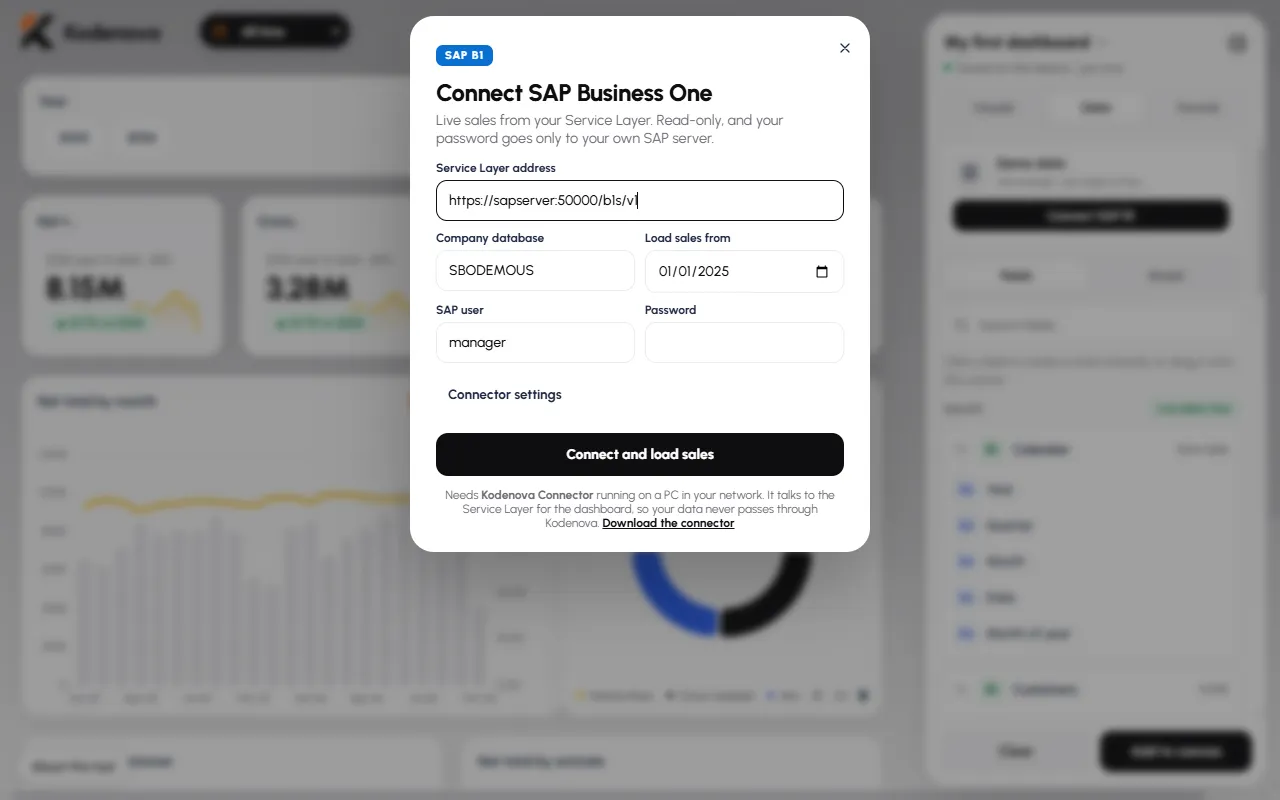
- That PC must reach your SAP Business One Service Layer address, for example https://sapserver:50000/b1s/v1.
- An SAP Business One user that can log in to the Service Layer and read the documents you want to show.
- A current browser (Chrome, Edge or Firefox) on the same PC.
How to connect in 3 steps
- Install .NET 8. On the PC that will run the connector, install the ASP.NET Core Runtime 8.0 from Microsoft (dotnet.microsoft.com/download/dotnet/8.0). The start file checks for it and tells you if it is missing.
- Download and start the connector. Download the zip below, unzip it to a folder, double-click start-connector.cmd and keep the window open. It listens on http://127.0.0.1:5199 (set the KN_PORT environment variable to use another port).
- Connect from the dashboard. Open kodenova.com/dashboard/, go to Data, choose Connect SAP B1 and enter the Service Layer address (for example https://sapserver:50000/b1s/v1), the company database, your SAP user and password.
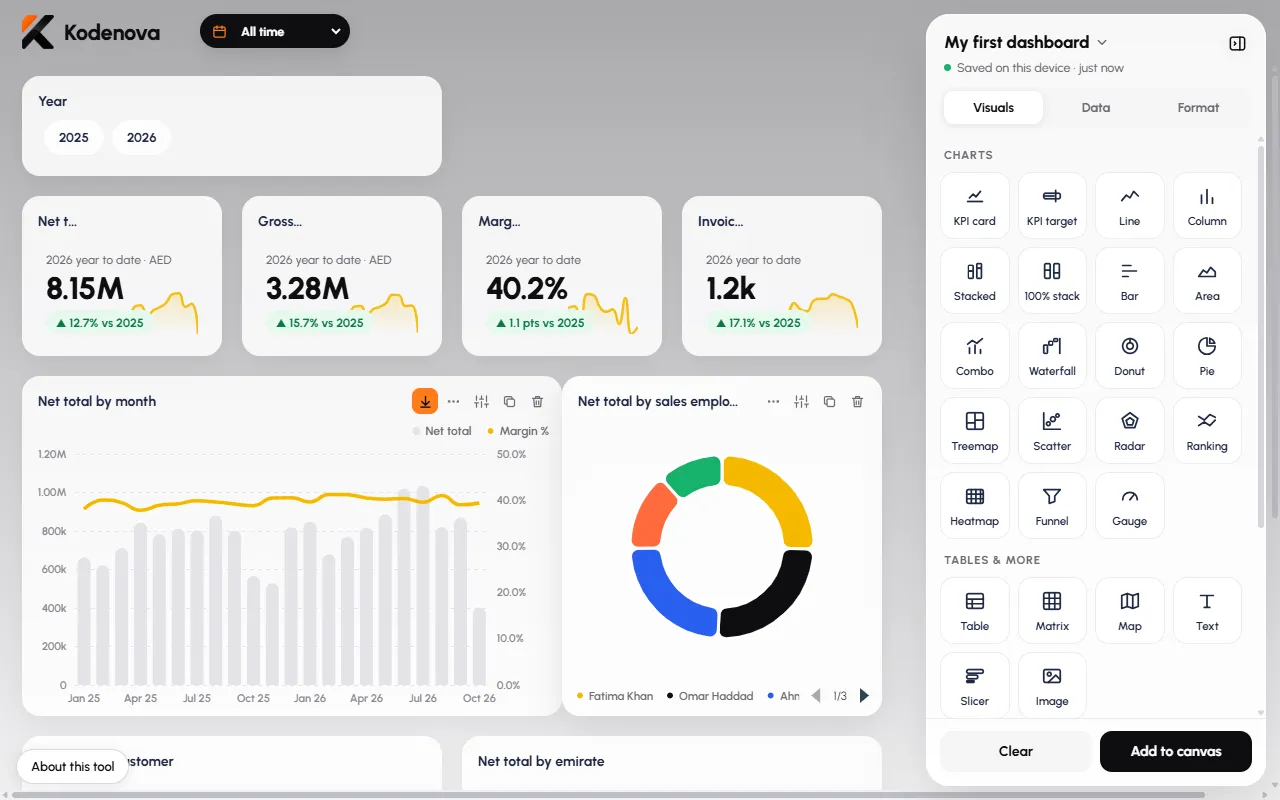
Sales works on live data for free. Purchasing, Inventory, Receivables and Finance run on demo data for everyone; live data for those four modules is part of Pro (beta), which you can request from inside the dashboard.
Security
- Listens on 127.0.0.1 only: no other computer on the network can reach it.
- Only pages from kodenova.com (and localhost, for testing) may call it from the browser; other sites get "Origin not allowed".
- Read-only: it saves SELECT statements in SAP as saved queries (SQLQueries, codes starting with KNDASH_) and reads master data. It never creates or changes documents.
- Your SAP password stays in the memory of the connector window and goes only to your own Service Layer. Nothing is sent to Kodenova. Close the window to forget it.
Verify the download (SHA-256)
File: KodenovaConnector.zip, version 1.1.0, released 2 November 2026.
a6f23765ab28591ce1d9303b322ba03dd86a346c73b7f66e4f9713c324793ade
On Windows, check it in PowerShell with Get-FileHash .\KodenovaConnector.zip -Algorithm SHA256; the hash must match exactly.
Troubleshooting
"Kodenova Connector is not running on this PC"
The dashboard cannot reach 127.0.0.1:5199. Start start-connector.cmd again and keep its window open. If you changed the port with KN_PORT, enter the same port in the dashboard.
".NET 8 is not installed on this PC"
Install the ASP.NET Core Runtime 8.0 (the Windows Hosting Bundle includes it), then start the connector again.
"Cannot reach the Service Layer"
The PC cannot open the Service Layer address. Check the server name and port (Service Layer usually listens on HTTPS port 50000), the firewall between this PC and the SAP server, and that the address ends in /b1s/v1. A test: open https://yourserver:50000/b1s/v1/ in a browser on the same PC.
Certificate warnings from the Service Layer
Service Layer often uses a self-signed TLS certificate. The connector accepts it for the Service Layer connection, so a certificate warning in your browser does not stop the connector from working.
"SAP login failed"
The Service Layer answered but refused the login. The message shows the SAP error code: check the company database name (the database, not the company name), the user name and the password.
"Origin not allowed" (CORS)
The connector only answers pages from https://kodenova.com (and localhost for testing). Open the dashboard from kodenova.com/dashboard/, not from a copy saved on another site.
"The Service Layer did not answer in time"
The first load of a large company can take a while. Try a later start date in the dashboard so fewer documents are read, then load again.
"Update your connector" on Purchasing, Inventory, Receivables or Finance
Those modules need connector 1.1.0 or later. Download the current zip below, replace the old files and start it again. Sales works with 1.0 and 1.1.
Changelog
- 1.1.0 (2 November 2026): read-only endpoints for Purchasing, Inventory, Receivables and Finance (saved SELECT queries, SQL Server and HANA). Sales unchanged, so dashboards built with 1.0 keep working.
- 1.0.0 (17 October 2026): first release. Connects the dashboard to the Service Layer and loads Sales (A/R invoices and credit memos, customers, items, sales employees).
Next: open the dashboard builder, read what the builder can do, or see SAP Business One dashboards without Power BI. Need a dashboard on your own fields and UDFs? Contact us.